
Creating a New User Account in TES
This article provides an overview of the process by which a TES Administrator can add a new user to TES®. There is no limit on the number of users that can be granted access to TES, assigned a particular user right, or logged into TES simultaneously.
In this article:
To begin adding a new user:
- Go to Manage.
- Select User Management.
The User Management screen will appear:

Add a User
1. Select +Add User.
2. An e-mail verification box will appear.
- Enter the email address of the new user and select Check. The user's email address must belong to the college, university, or organization's email domain (or subdomain).

If the email address of the user is not found, the TES® Administrator will be taken to an additional ADD USER page.
- If the email address is found, the TES Administrator can simply update the the user profile.
Enter Contact Information
Within the ADD USER screen, enter/make a selection in the following fields (required fields are highlighted):

| Field Name | Instructions | Status |
| Salutation |
Select from the following: Mr. Mrs. Miss Ms. Dr. |
Optional |
| First Name | Enter the user's first name | Required |
| Middle Name | Enter the user's middle name | Optional |
| Last Name | Enter the user's last name | Required |
| Suffix |
Select from the following: Jr. Sr. I II III PhD MD |
Optional |
| Department | Enter the user's department name | Optional |
| Job Title |
Enter the user's job title The job title entered will appear next to the user's name in the Assign: drop-down in the Evaluation Tracker workflow (Add Evaluation Task 2). |
Required |
| Phone | Enter the user's phone number | Optional |
| Fax | Enter the user's fax number | Optional |
| Address 1 | Enter the user's address (line 1) | Optional |
| Address 2 | Enter the user's address (line 2) | Optional |
| City | Enter the user's city | Optional |
| Zip/Postal Code | Enter the user's Zip/postal code | Optional |
| State | Enter the user's State | Optional |
|
|
|
|
Set User Rights
Toggle the Yes/No buttons next to each user right to establish the access/permissions the user will be granted:

See User Rights and Permissions for an overview of the following available rights:
- CREATE LIST
- CREATE EVAL
- SERVICE EVAL
- MANAGE EVAL
- ACCESS EQ
- EXPLORE EQ
- CREATE EQ
- ADMINISTRATOR
Set Your Password Email Notification
Toggle Yes/No to indicate whether a SET YOUR PASSWORD notification should be sent to the user. By default, Yes is selected.

Select Add User to add the individual to TES®.
- Selecting Cancel would return the TES Administrator to the User Management screen without creating the user account.
The user will receive the following email with directions for establishing a password.

The user will need to select the link (which expires in 48 hours) to create a password. If this is not done within 48 hours, the individual must request a password reset.
If the new user is a faculty evaluator, the TES Administrator might wish to establish Priority Departments to help the evaluator more quickly complete evaluation tasks. See Priority Departments: Overview & Management for further details.
Setting Up a Password
Once the link above is selected, the new user will be taken to the Password Reset screen. The user will need to enter and re-enter a password using the guidelines listed.
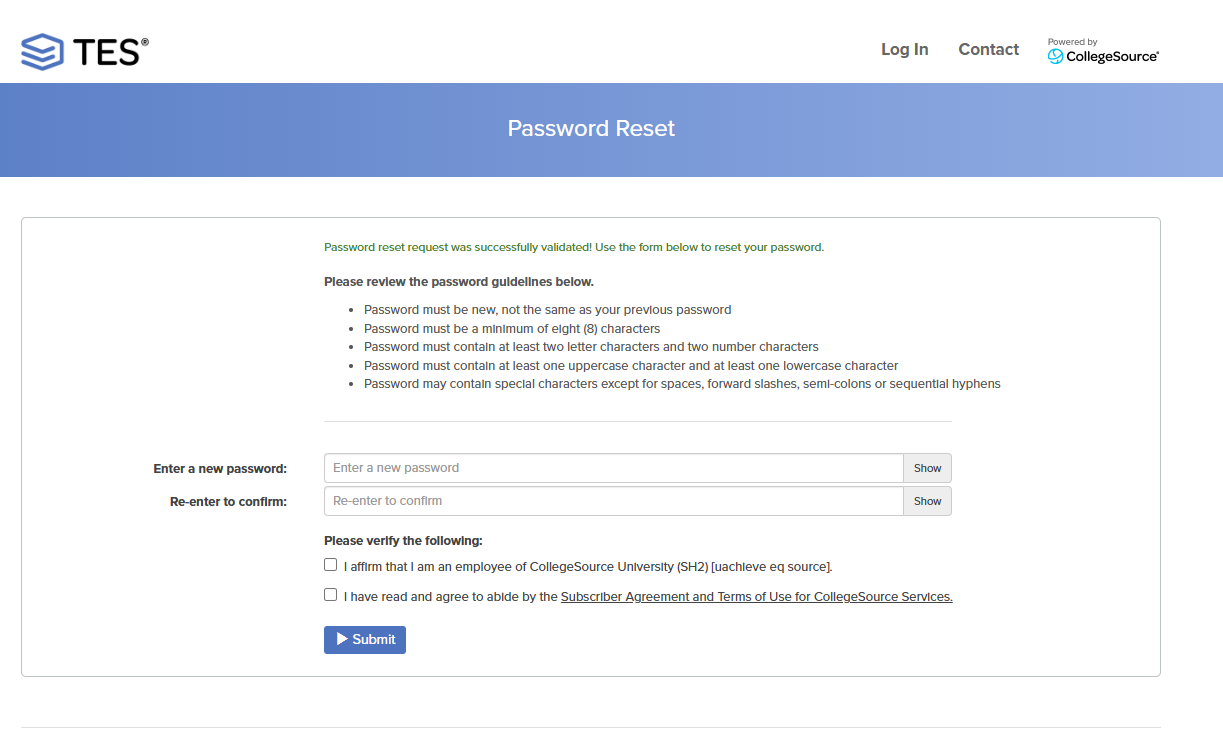
If the user has a Transferology® Lab account, resetting the TES® password will also change the Transferology password. Users of Transferology Lab will see a message noting this on the screen under the verification boxes.
See Request a Password Reset for further details.